EDITVideo editing
Edit the rendered shots right on the breakdown
Music, sound effects, transitions, captions — tidied up in place, without exporting to an editor.
Called in the app: 「動画編集」
01—THE TIMELINEThe timeline
Fix it on the spot, check it right away
Change something and it plays at once. The AI times the captions to the voices.
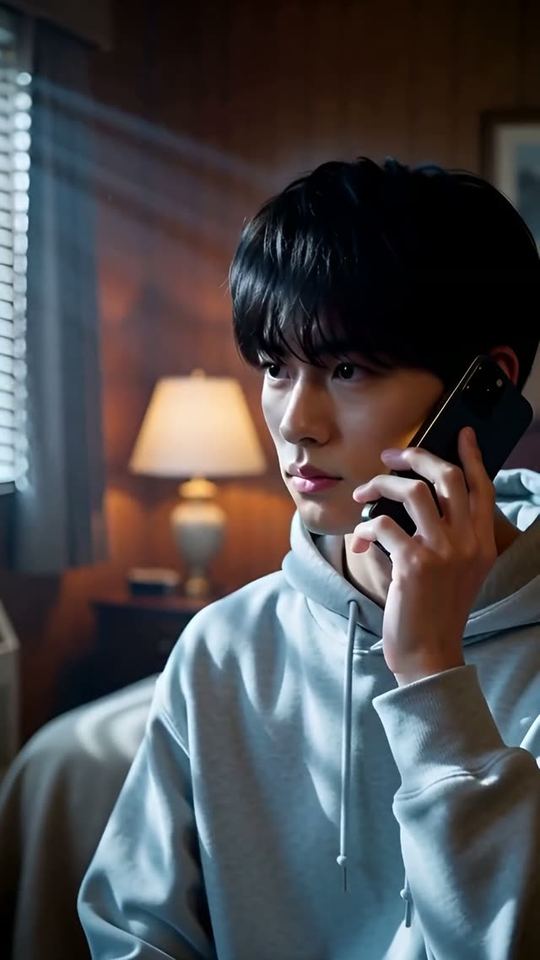
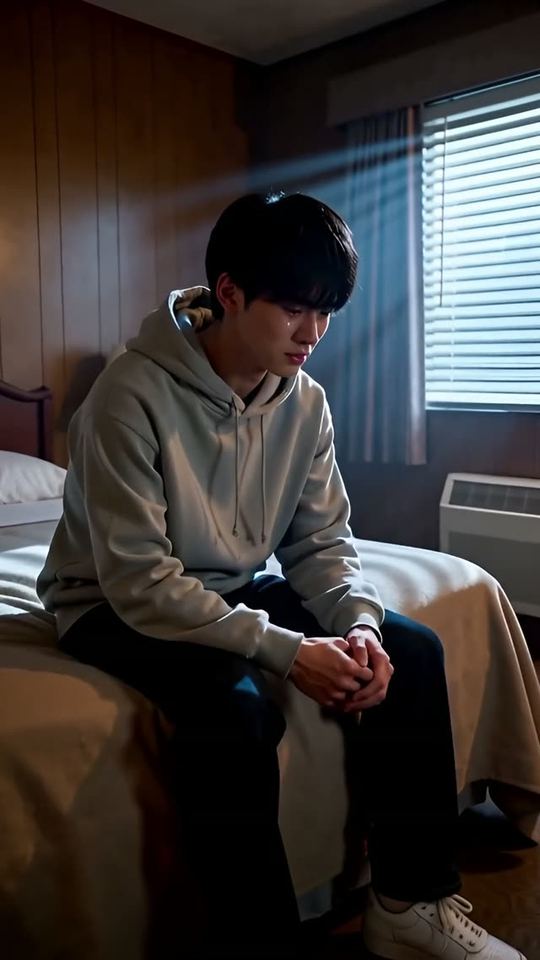
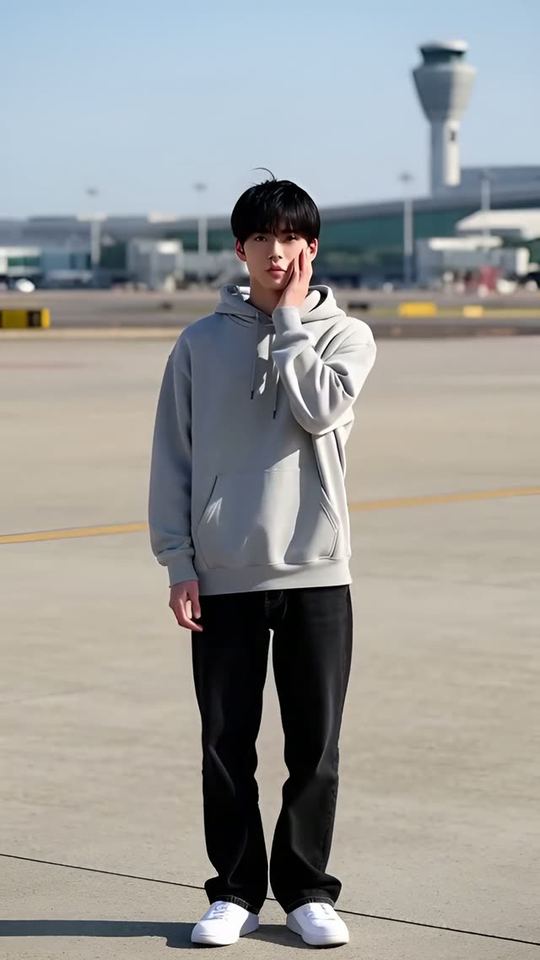
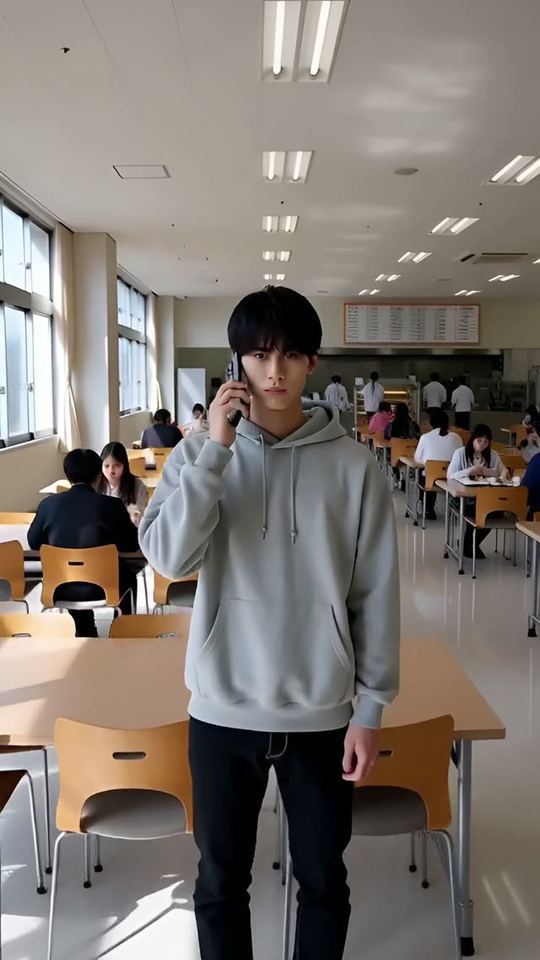
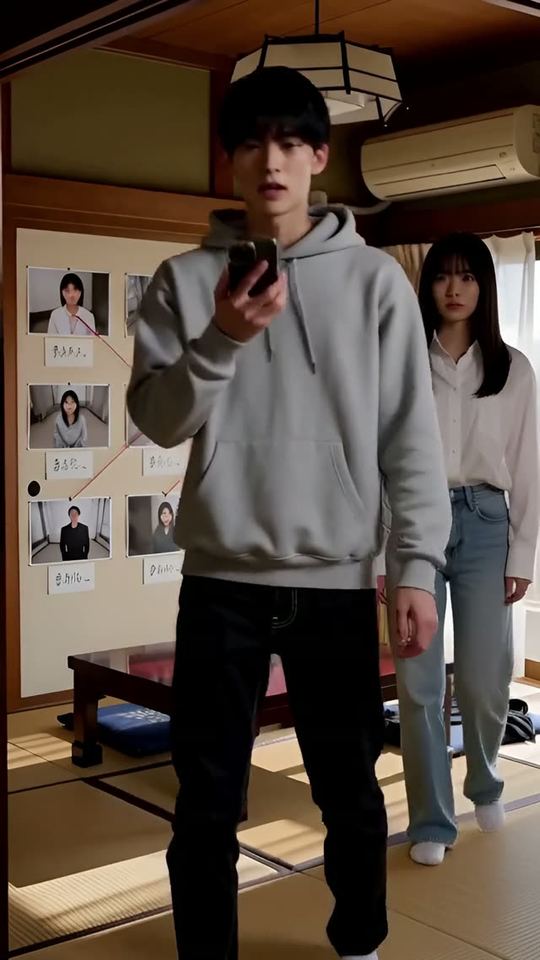 LOGO0.0s / 18.0s
EDITOR—04Video editing
The editor (you)
The finished shots in one line: trims, transitions, music, sound effects, inserts. Every change plays back on the spot.
You
CAPTIONS—04Video editing
The caption editor
It listens to the shots and shows each caption only while its line is heard, restyling it to suit the video. The wording never changes.
Chat AI
02—HANDOFFTo your editor
Or finish it in your own editor
Cut out shot by shot, it's ready for a rough cut. The captions travel as text data too.
03—TRIMS & TRANSITIONSTrims and transitions
Trim the ends, bridge the joins
Drag an edge or cut at the playhead. Pick a transition from the ◆ on each join.
Transitions
- カット
- ディゾルブ
- 黒フェード
- 白フェード
- ワイプ
- スライド
- 丸く開く
TRIM
Frame-accurate trims
Drag the edges, type the numbers or use the I / O keys. Snaps to frames and keeps at least 0.2 s. “Undo trim” puts it back.
JOIN
Transition length too
0.5 s by default, anywhere from 0.1 to 3.0 s. Fade to black for a change of scene, to white for a flash or a memory.
SWAP
Swap the take
Swap a shot for another take you generated. The order stays as in the shot list.
04—SOUNDSound
Lay one song under it, add sound effects
Song volume and fades, sound effects wherever you like, and each shot's own sound adjusted one by one.
BGM
One song
Upload a song and set its volume, where it starts and its fade in / out (0–10 s).
SE
Sound effects
“+ Sound effect” plays a sound from the asset library at any moment.
AUDIO
Each shot's own sound
Volume and mute per shot. The audio track shows the waveform, so you can see where the voices are.
05—CAPTIONS & IMAGESCaptions and images
Captions that come and go with the voice
32 looks. The AI listens to the shots and times each caption to its line.
STYLES
20 classic, 12 showpiece
From white on a black outline or pink lettering for dialogue, to gold 3D, neon and breaking news. Wrap words in ** to colour them.
PLACE
Nine spots, or anywhere
Bottom centre by default. Drag it anywhere on screen, or keep it up for the whole shot.
IMAGES
Lay images on top
A title logo or anything else, at any time, place and size. In and out with fade, pop, slam, from below, from the right or left.
06—INSERTS & BANKInserts and bank footage
Openings and bank shots, from another video
“Insert footage” drops in a finalized video or one from the asset library.
WHERE
Start, playhead or end
Inserted clips get trims, transitions and volume too, and move with “earlier” / “later”.
FINALIZED
From another episode
Any finalized video in your organization — the opening of every episode, or bank footage you reuse.
LIBRARY
From the asset library
Videos you uploaded, or shots cut out with the splitter. Drag in a new one to upload it.
07—CUT SPLITTERSplit into shots
An imported video, cut into shot-sized clips
It finds the cut points by itself and files each shot in the asset library. Handy when you need insert shots.
Detection














Three points on standard. Drag a point to move it, double-click to remove it.
Cut each into the asset library

#01 · 3.8s

#02 · 3.8s

#03 · 3.8s
#04 · 3.8s
01
Bring it in
From a file, or a YouTube URL (up to 15 minutes).
02
Find the cuts
Picture changes are found automatically. Add or remove points by hand.
03
One clip per shot
They go to the asset library, ready for a shot in the shot list or an insert in the edit.
Only bring in footage you have the rights to.
FEATURESFeature pages
THE FIVE STEPS
ASSISTANT
Tell it your idea, and the AI crew lines up everything from the script to the edit. You check, and press.
- The AI that writes the plot
- Three AIs that read the script
- The AI that breaks it into shots
- An AI that checks the flow, one that fixes it
- The action director
- The framing AI (director of photography)
- The props person's eye
- VFX directions
- The AI that writes the prompt
- The caption editor
- The editor (you)
GET STARTEDStart here
Your film studio, starting today
Start by creating a single cast member. We're happy to talk it through.