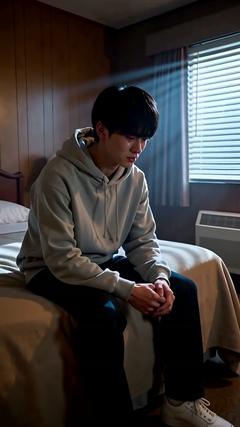
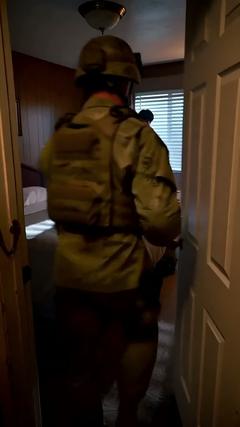
| Planning | Plan by talking | Describe the idea for your video and it moves from plot → shot breakdown → cast and set reference images → rendering. A person presses the button for each next step. |
|---|
| Planning | Write the Wiki with the AI | Pitch, characters, structure and scripts go in the Wiki. Rewrite the page you have open together with the AI, and go back to the previous version if you like. |
|---|
| Planning | House rules for the breakdown | Write down how the project likes its shots broken down, such as pacing or shot length, and the AI follows it every time it breaks a story into shots. |
|---|
| Planning | Start from a form | Not one for chatting? Filling in a form is enough to set up a piece. |
|---|
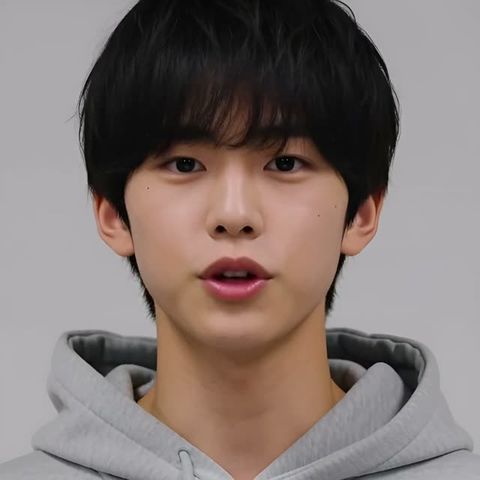
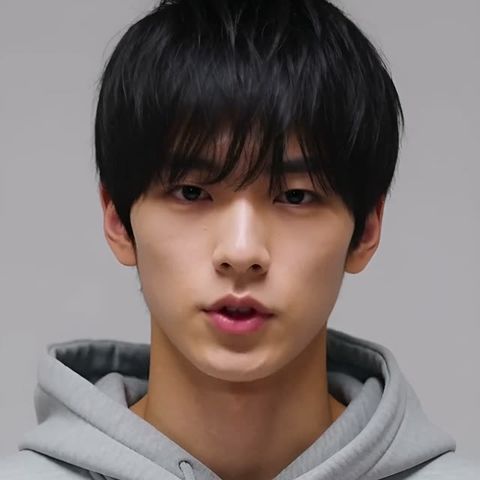
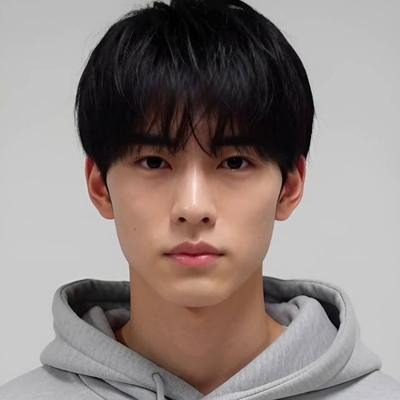
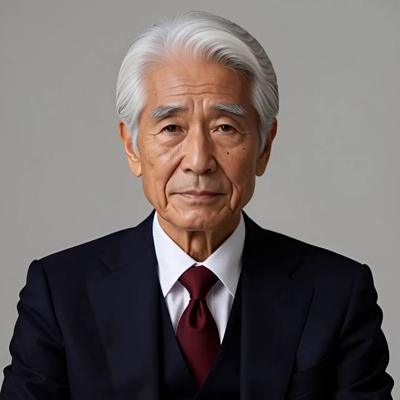
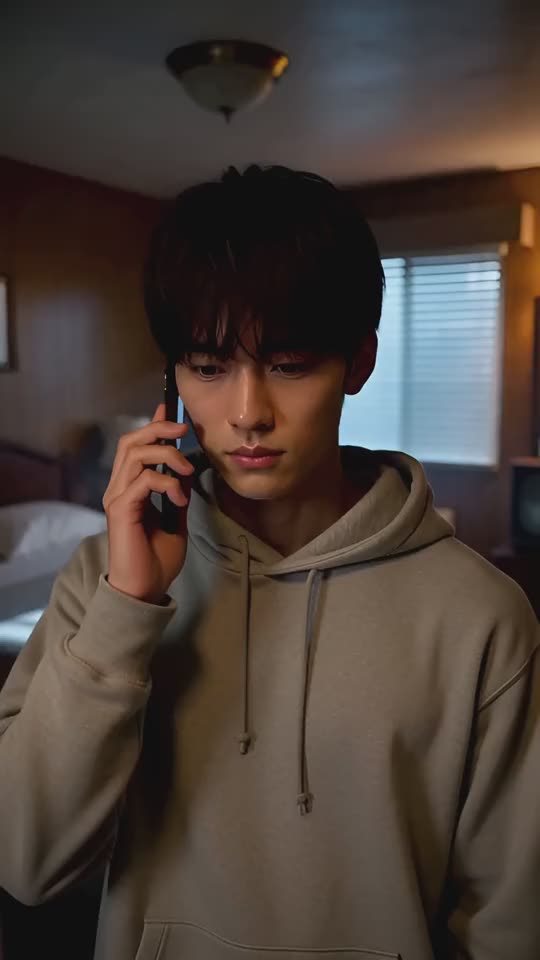
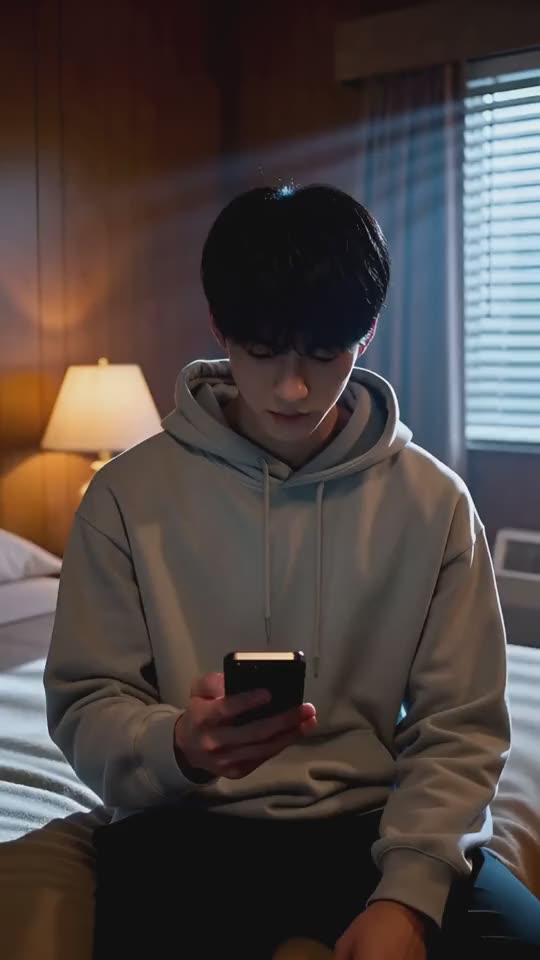
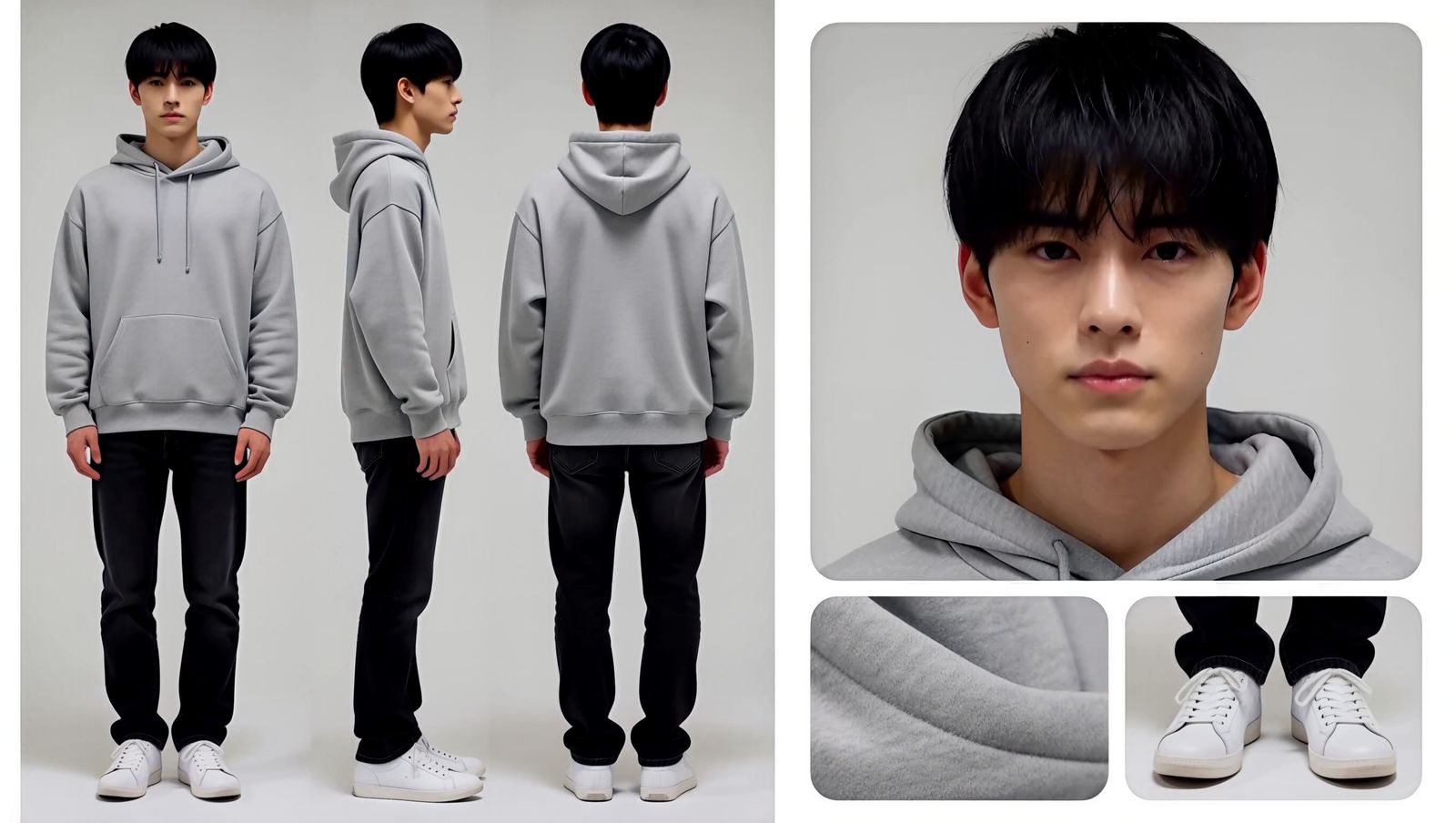
| Cast | Create a cast member | Attach photos or talk it through with the AI. Compare face options as short videos and use the frame you like as the reference image. You also get a turnaround and a profile sheet with a face close-up. |
|---|
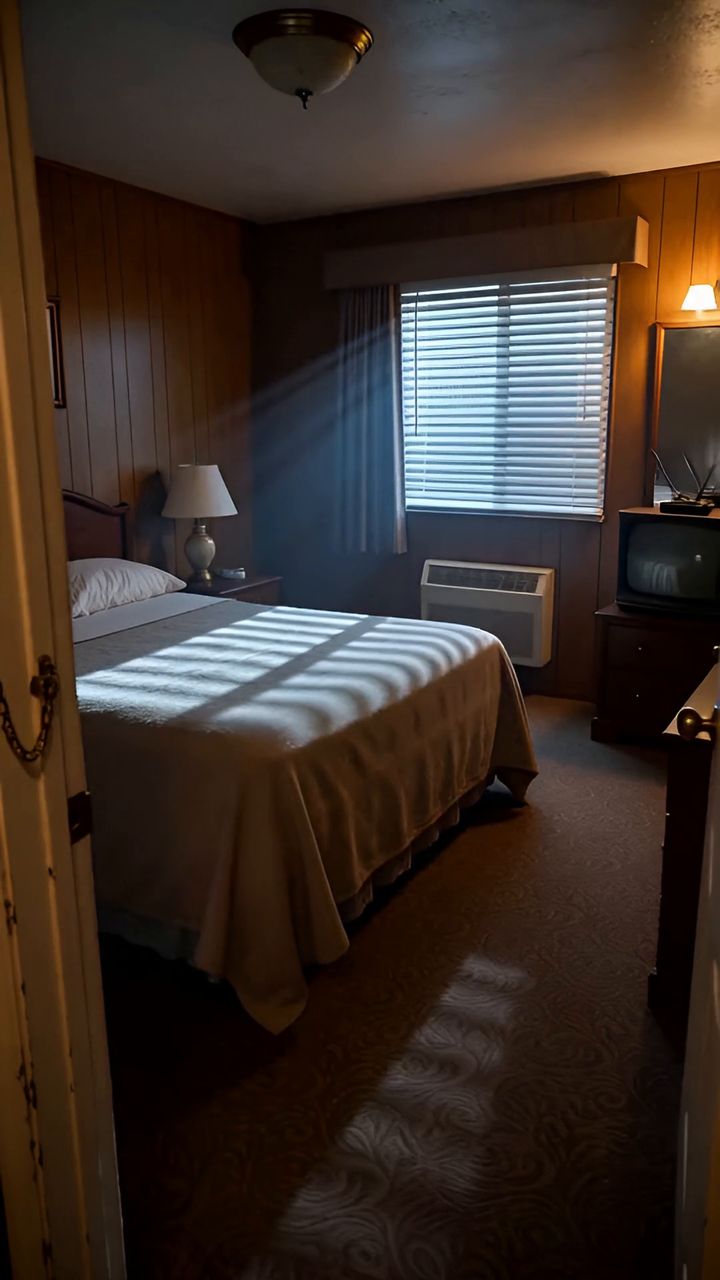
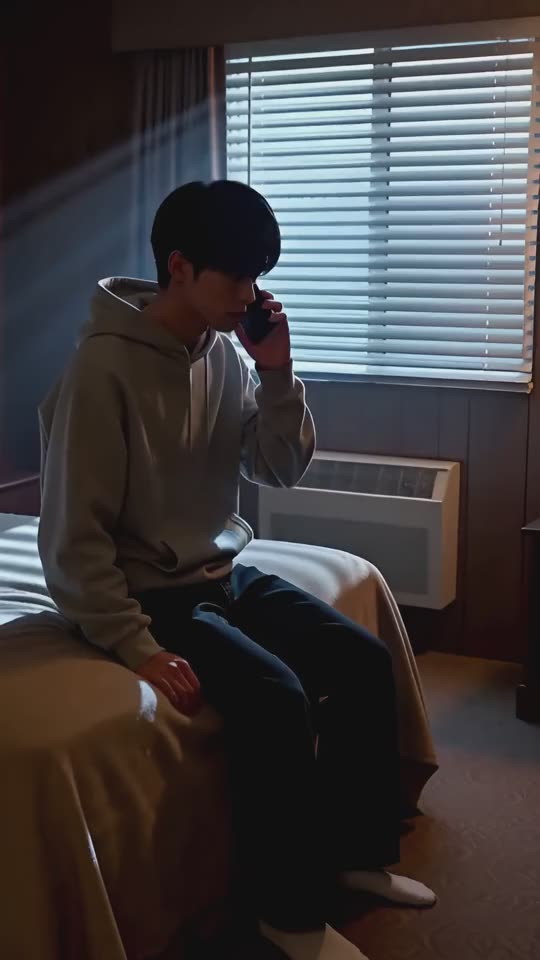
| Sets | Build a location | Make a set for a place from a photo or a description. Attach it to a chapter and every shot is filmed in the same place. |
|---|
| Props | Things that keep appearing | Make the things that keep appearing, such as a phone or a bag, into props. Give them a reference image and they look the same from shot to shot. |
|---|
| Camera | Pick the camera | Angle, lens, move and speed are buttons named in on-set language. You can also pick by the effect you want, such as “draw in” or “intimidate”. |
|---|
| Camera | Frame it in 3D | Place the camera and the people in 3D to set the frame. Start from 14 framing presets such as full body, over the shoulder, or two people face to face. Available when you shoot on your own GPU. |
|---|
| Shot list | The plot table | An episode's shots on one table. Picture notes, lines with their speakers and captions side by side, editable right where you click. |
|---|
| Shot list | Retake a single shot | Regenerate only the shot you don't like. Earlier takes stay in the history, so you can compare and choose. You can also give the shot directions while you watch it. |
|---|
| Shot list | Play it through | Play the whole video start to finish with the captions on top. Press a frame below to jump to that shot. |
|---|
| Rendering | Cloud or local | Each organization picks MiniMax H3 on its own GPU, or MiniMax H3 / Hailuo via fal.ai. The GPU queue is visible in a list, and urgent jobs can jump ahead. |
|---|
| Specs | Aspect ratio, resolution, frame rate | 16:9, 9:16, 1:1, 4:3, 3:4, 21:9 / 480p, 720p, 1080p / 24, 30, 60 fps. |
|---|
| Editing | Join and export | Join every shot into one video and burn in the captions. Download the finished video, a subtitle file (SRT) and all the shots at once (zip). Each shot's MP4 also works in your own editor. |
|---|
| Editing | Captions | 9 looks, from YouTube-style to film subtitles. Pick one for the whole video, or change it shot by shot. Rewriting them needs no retake. |
|---|
| Sharing | Share page | Issue a URL anyone can open without logging in. Choose what it shows besides the video (shot list, cast, sets, Wiki) and pick a cover. |
|---|
| Assets | Outputs and asset library | Generated shots, finished videos, and photo and video assets are kept per project. Cast and set images sort themselves into folders. |
|---|
| Team | Members and guests | Invite members to work from the same shot list. Bring clients in as guests, job by job. |
|---|
| Integrations | API and MCP | From Claude Code or Codex on your own machine, ask for anything from the Wiki, cast, sets and shots to rendering (52 tools). It renders only when asked, and deletions that can't be undone happen only on screen. |
|---|


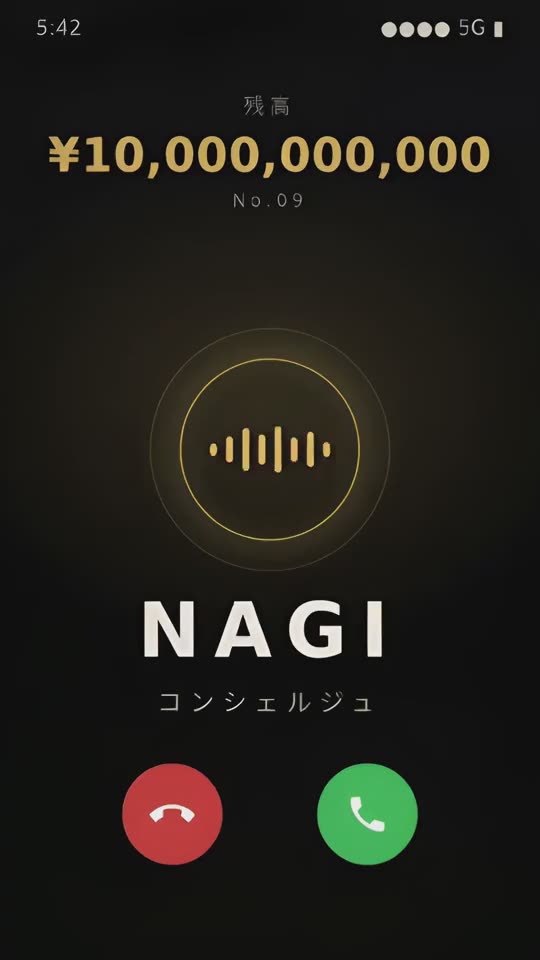

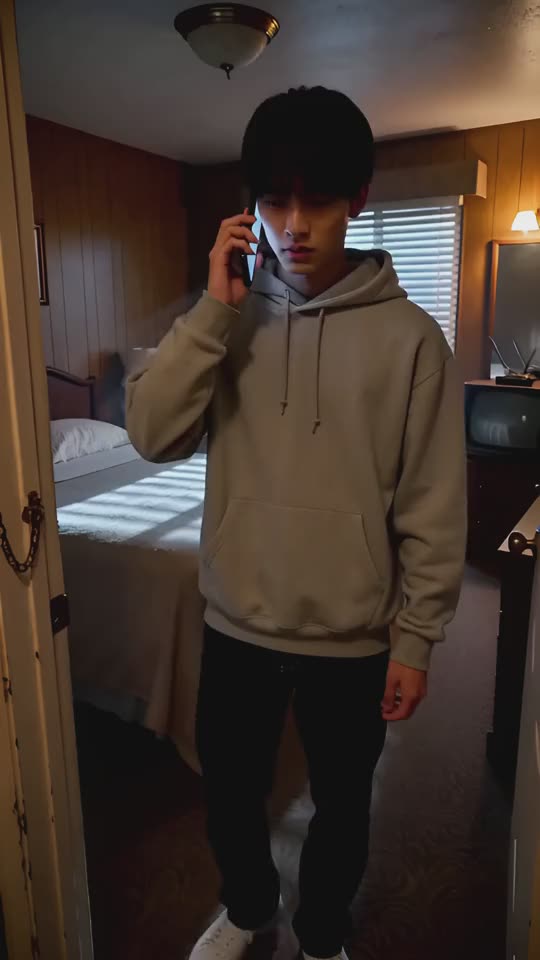
 Minato · Profile sheet
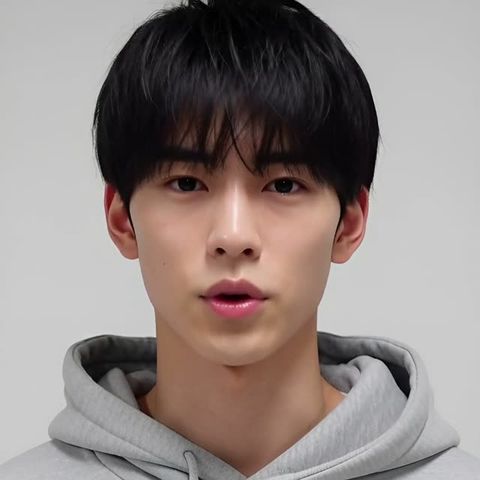 Chosen