CAST & SETSCast & sets
Cast and sets, kept in one ledger
Actors, sets, props and voices go into the project's ledger before you shoot — the same groundwork as a film.
01—THE LEDGERThe project's ledger
The project becomes the studio
Cast and sets live in the project, and every video borrows from it. However many you shoot, the same faces, the same places.
CAST9
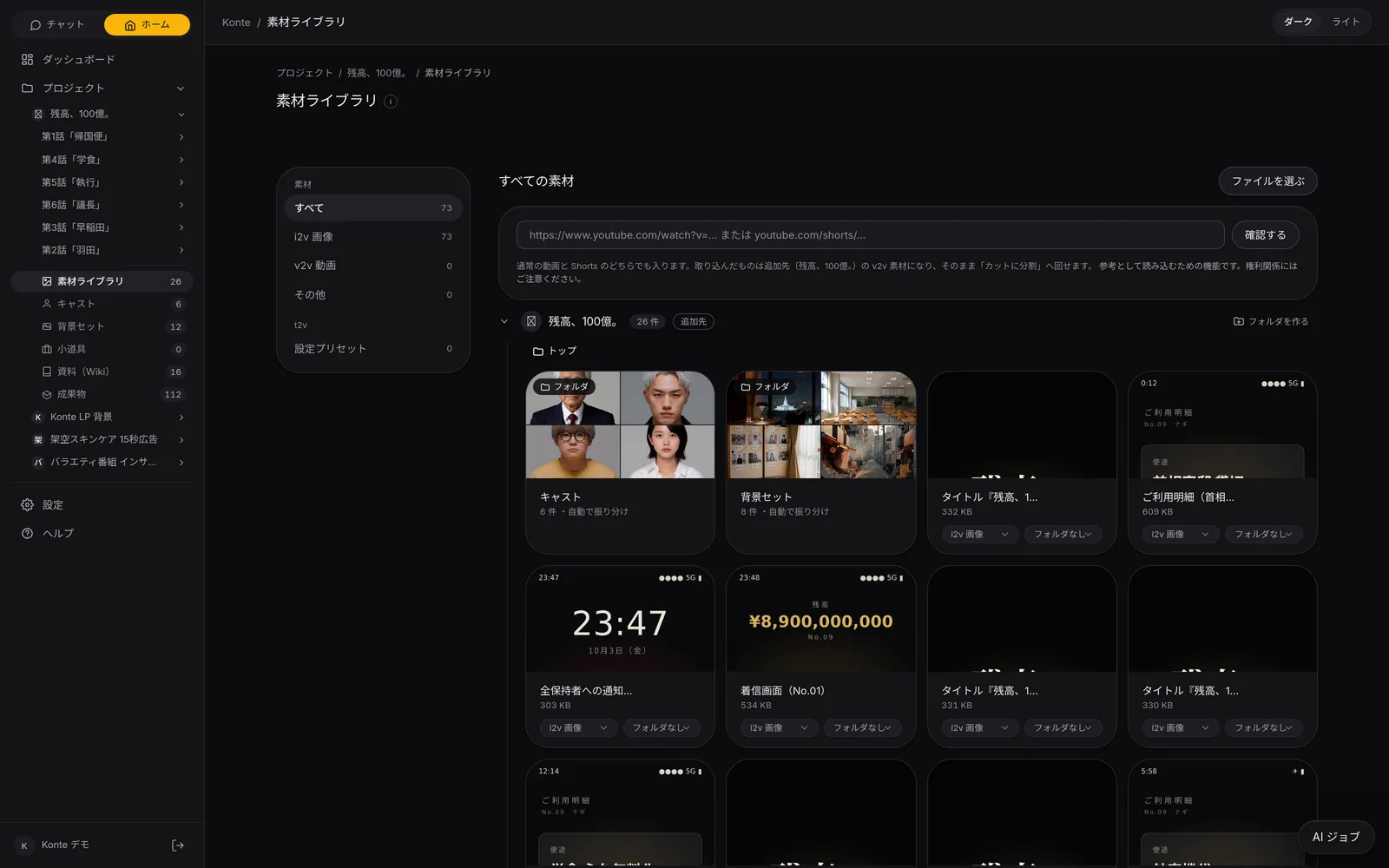
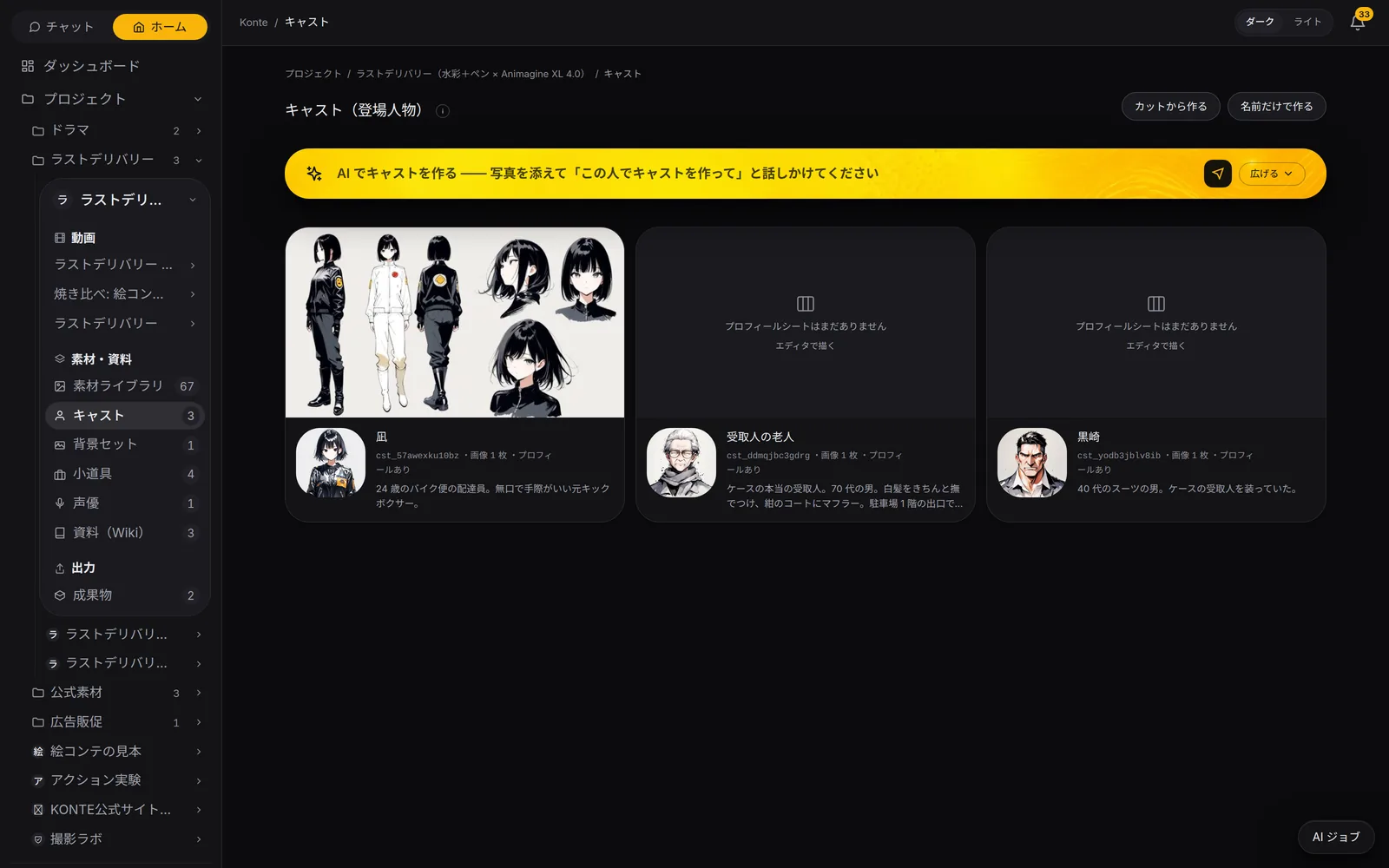
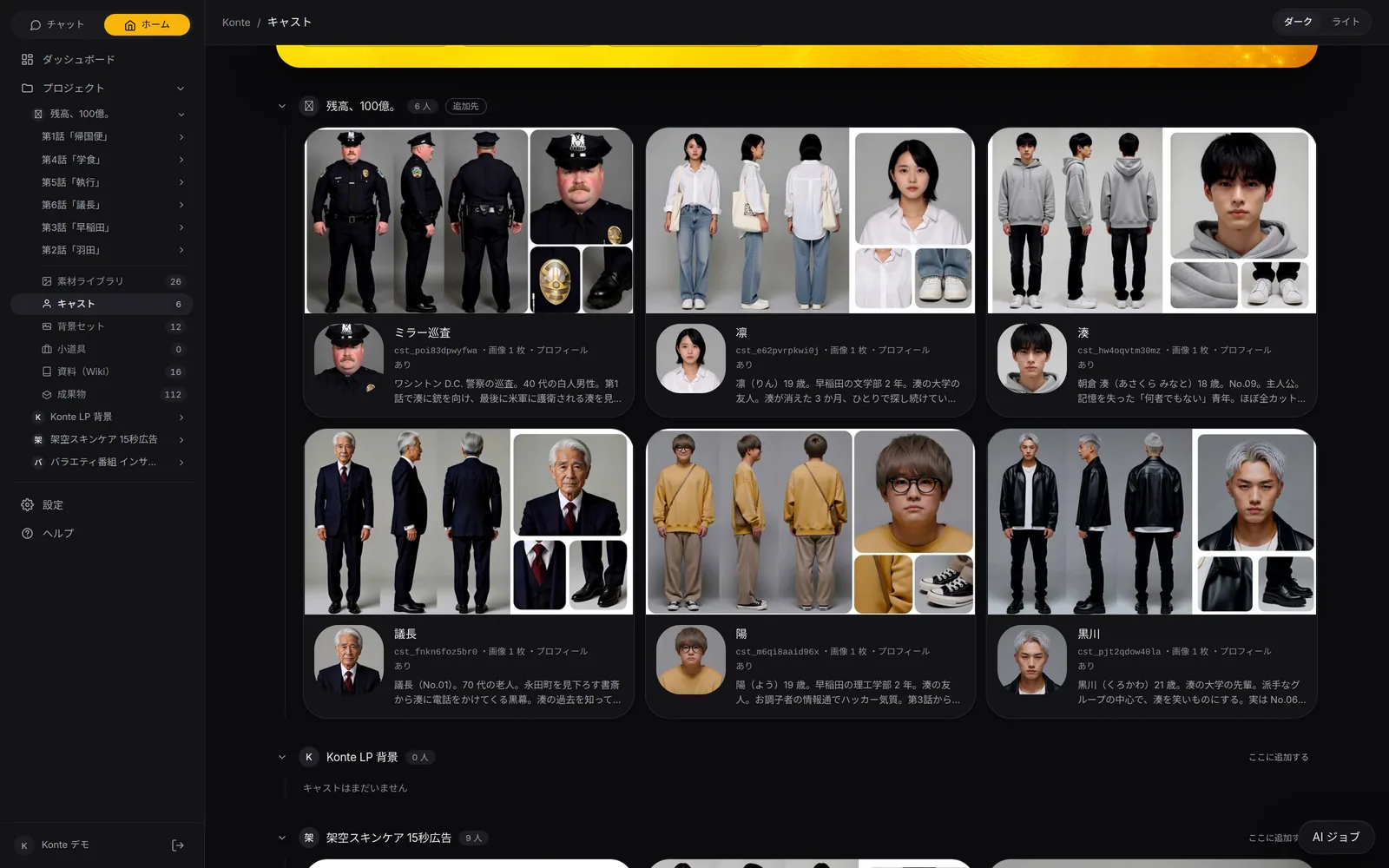
Cast
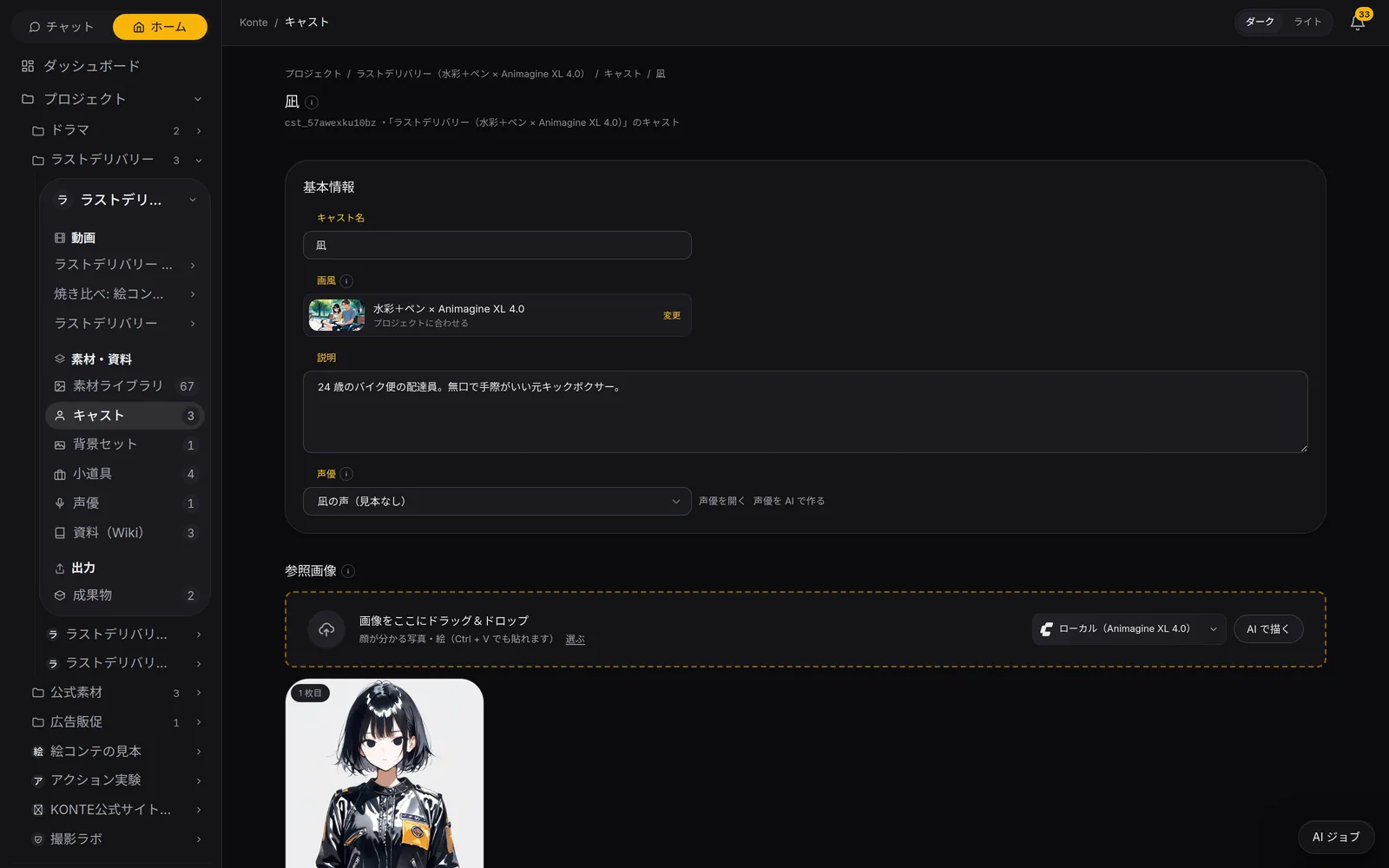
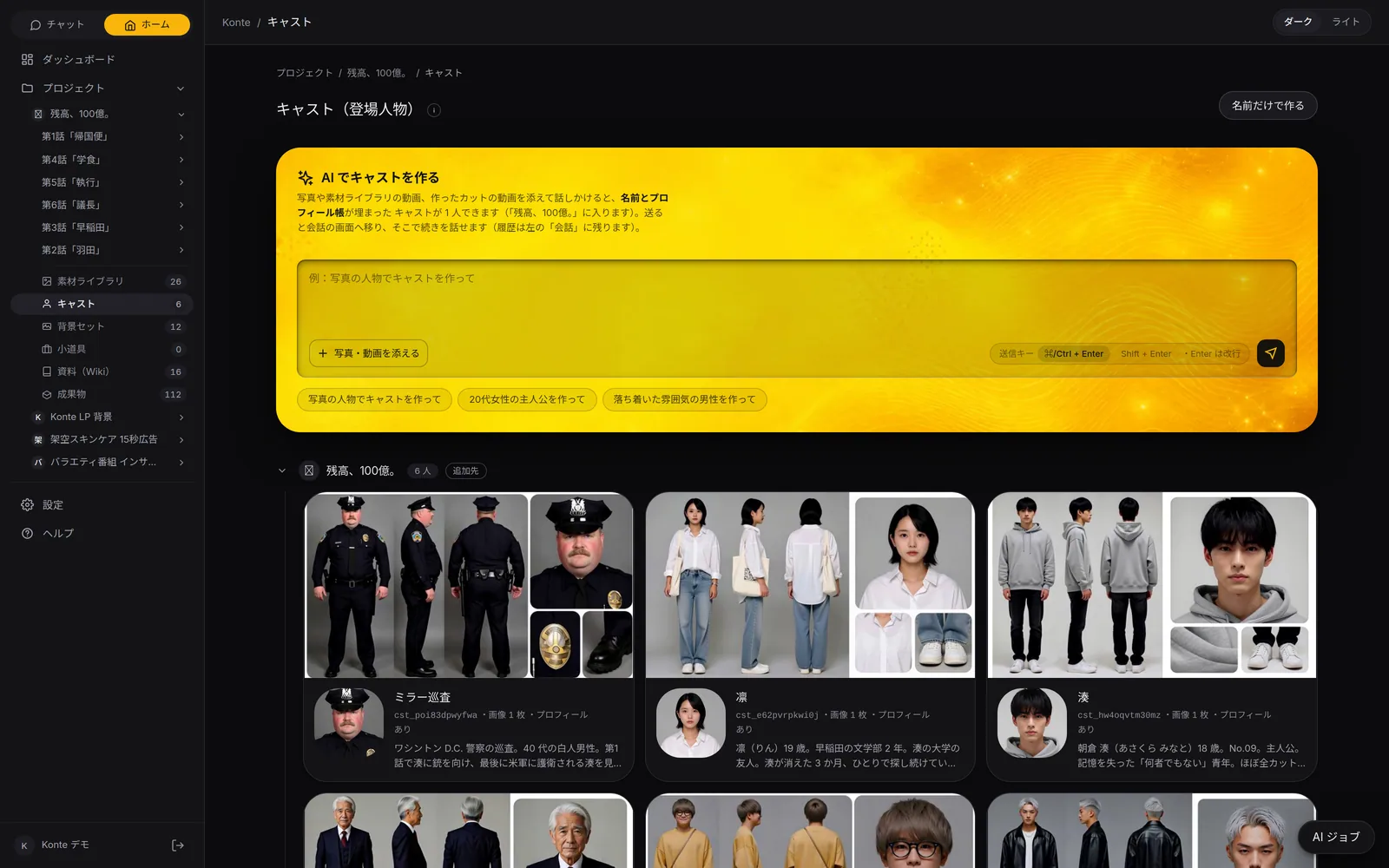
Face reference and profile sheet, plus the description, art style and voice.
SETS21
Sets
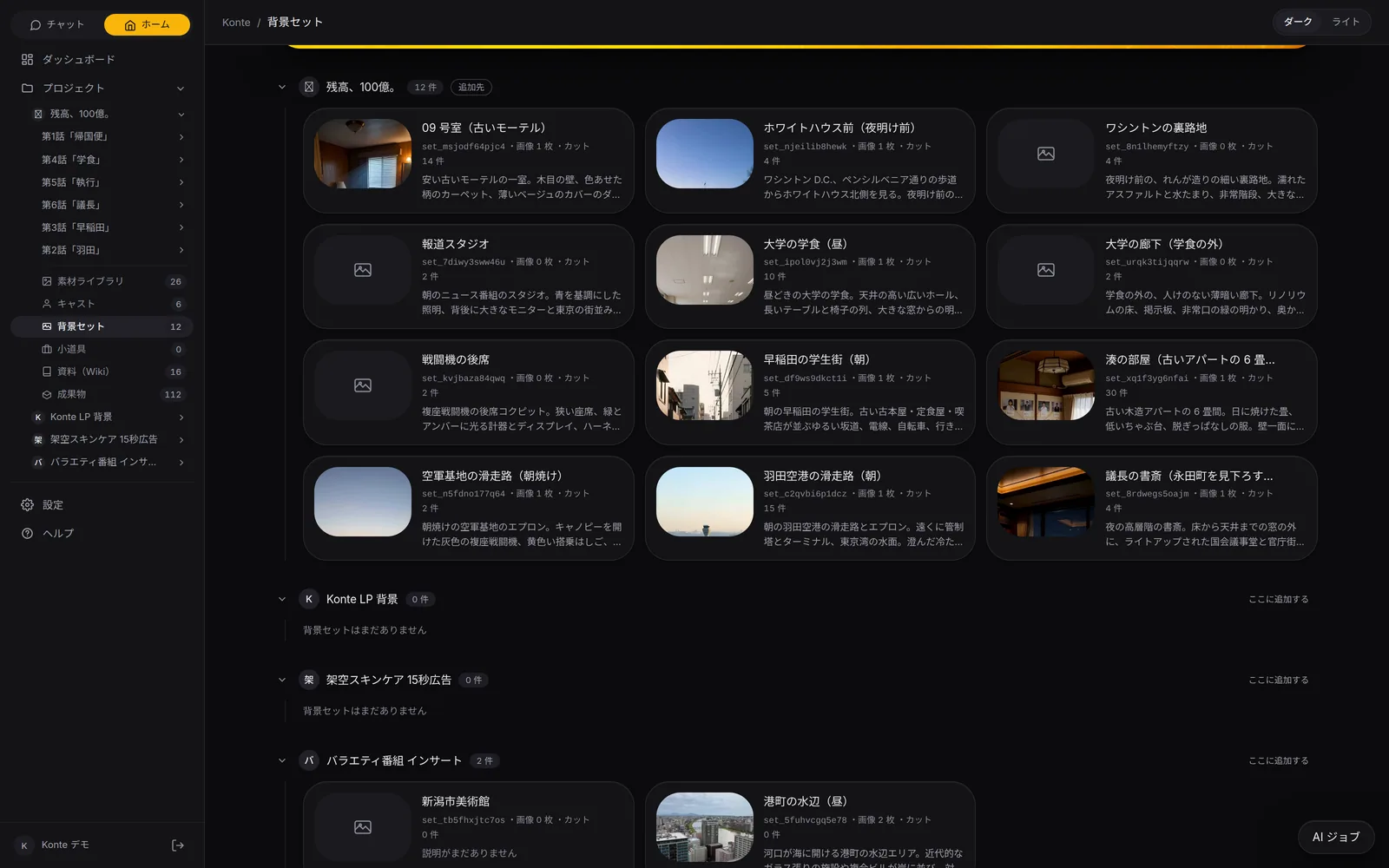
Reference images of the place, and a set sheet with wide, overhead and close angles.
PROPS6
Props
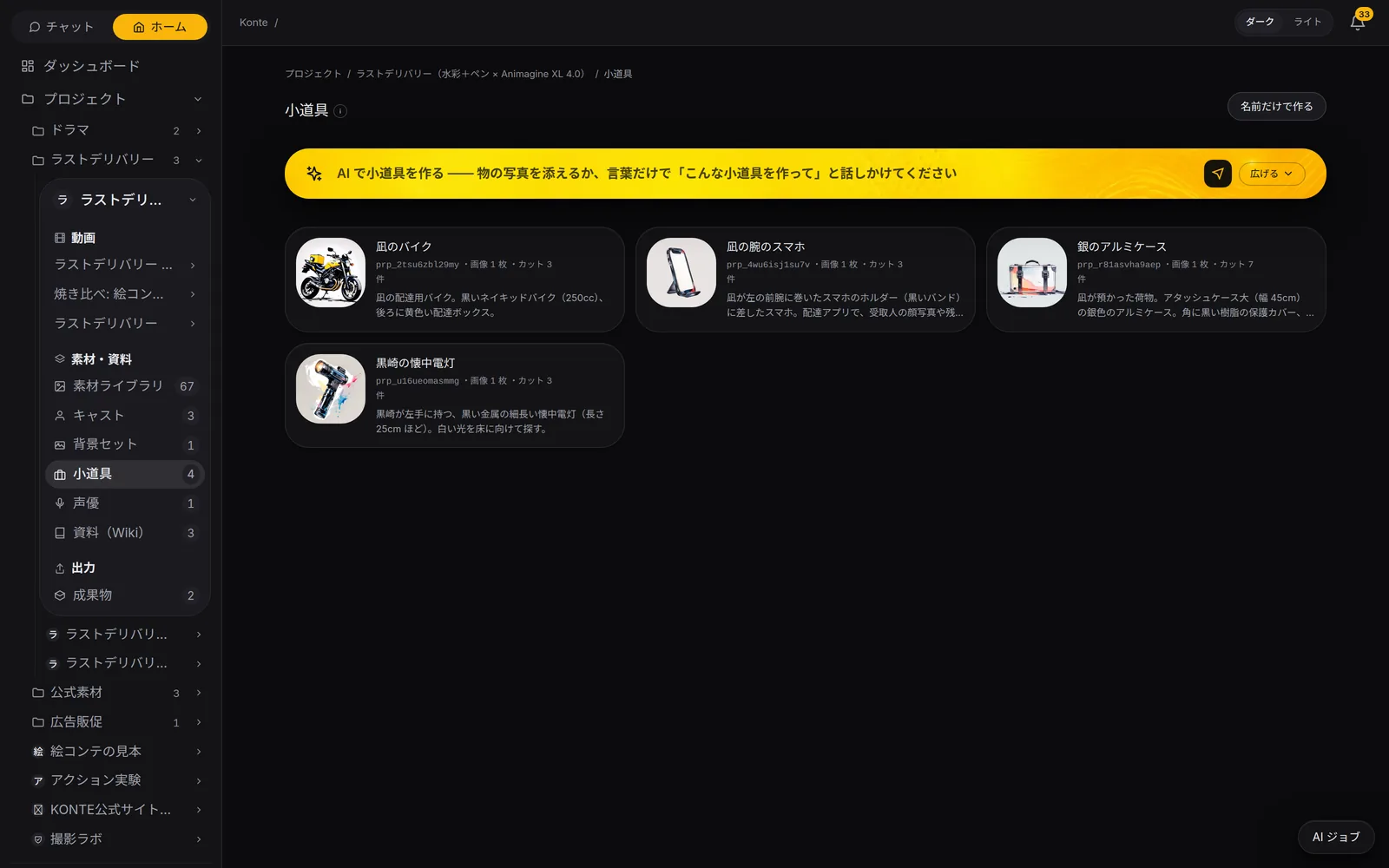
Things that keep appearing, with a count of the shots they're in.
VOICES
Voice actors
What the voice is like and a sample read, linked to a cast member.
ASSETS112
Asset library
Photos, videos and in-story screens. You can also draw one from a prompt.
WIKI49
Wiki
Pitch, characters, script. The AI reads these to break the story into shots.
Counts from the vertical drama project “Balance: 10 Billion” (as of October 2, 2026).
CAST
Cast
Every face and outfit, in the ledger
SETS
Sets
Build the location before you shoot
PROPS
Props
The same thing, however often it shows
VOICES
Voice actors
The voice comes with the cast
02—CASTINGCasting
Actors start with an audition
Settle the face, make the full-body sheet, give them a voice. The same steps for live action or 2D.
01
Write the role
A name and a description. Attach a photo, or settle it by talking with the AI.
02
Settle the face
Draw the reference image with the image AI, or drag one in. You can pick the model that draws it.
03
Profile sheet
Full body, wardrobe and the face from several sides on one sheet, so they look like the same person in every shot.
04
Give them a voice
From the description and profile, the AI makes that cast member's voice and links it.
05
Match the art style
The art style is set for the project and can be overridden per cast member. Live action or 2D.
03—SETS & PROPSSets and props
Build the places and things first
Attach a set to a chapter and every shot is in the same place. A prop looks the same however often it appears.
04—IN THE SHOTFrom the ledger to the shot
Cast every shot from the ledger
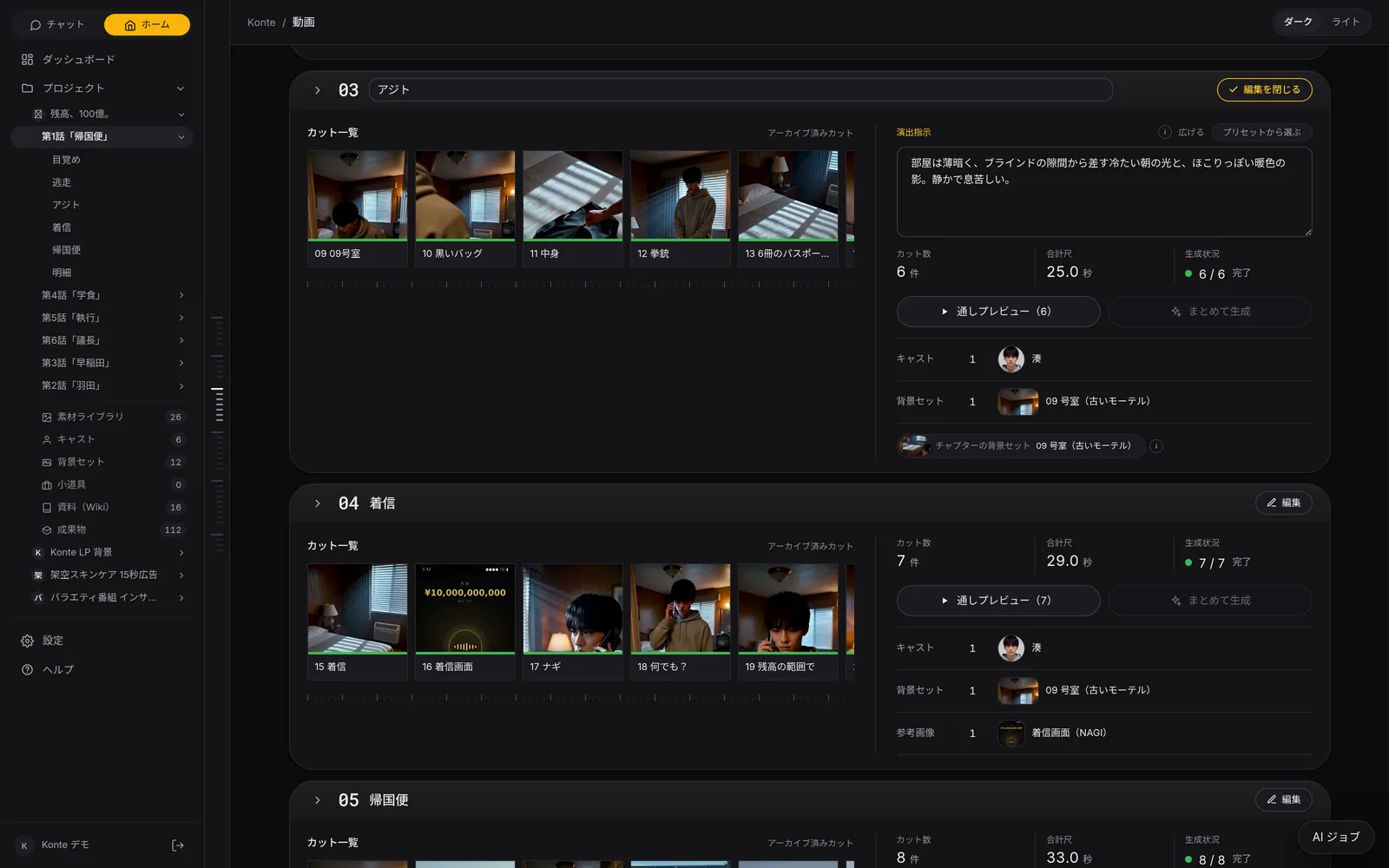
Pick the cast, set and props on the storyboard, and their reference images go to the video AI.
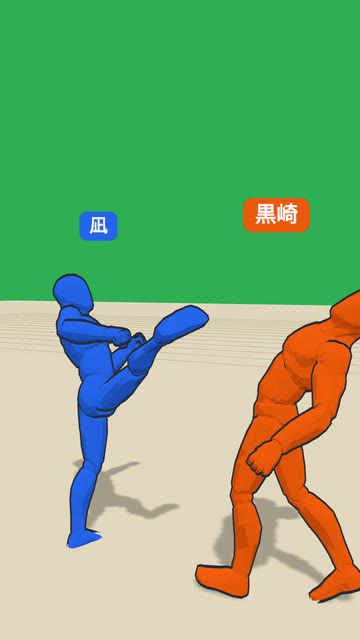 3DVIDEO
The back kick
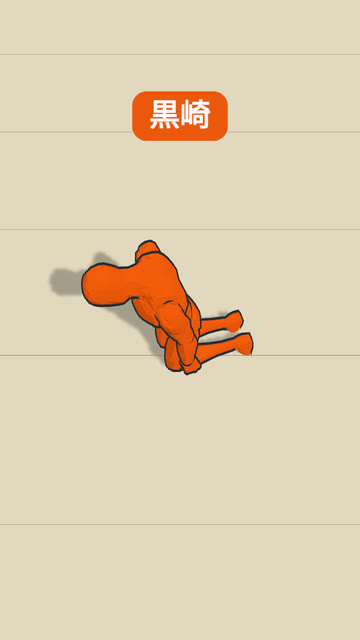 3DVIDEO
Slumped against the pillar
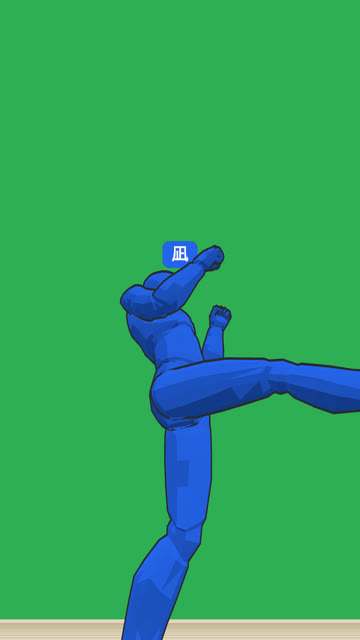 3DVIDEO
Kicking the case up
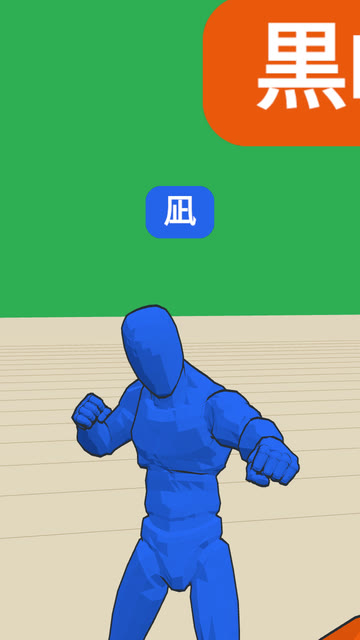 3DVIDEO
A punch over the shoulder
Left: the storyboard's 3D mock-up (the key moment). Right: the shot rendered with it as the framing guide. Faces and clothes are drawn from the cast's reference images.
Cast each shot
On the storyboard each shot takes its cast, set and props from the ledger. Their reference images go straight to the video AI.
Fix it by talking
The visual prompt for a cast member or set can be rewritten in conversation, to suit the image AI that draws it.
Carry it to another project
Cast, sets and props can be copied to another project. So can a whole video.
Drop it in without rendering
A video from the asset library can go into a shot as it is, without rendering.
FEATURESFeature pages
THE FIVE STEPS
ASSISTANT
Tell it your idea, and the AI crew lines up everything from the script to the edit. You check, and press.
- The AI that writes the plot
- Three AIs that read the script
- The AI that breaks it into shots
- An AI that checks the flow, one that fixes it
- The action director
- The framing AI (director of photography)
- The props person's eye
- VFX directions
- The AI that writes the prompt
- The caption editor
- The editor (you)
GET STARTEDStart here
Your film studio, starting today
Start by creating a single cast member. We're happy to talk it through.