Skip to content
Konte
Cast
SH-02 · 6s · KONTE · MiniMax H3 on a local GPU

CAST & SETSCast & sets

Cast and sets, kept in one ledger

Actors, sets, props and voices go into the project's ledger before you shoot — the same groundwork as a film.

01—THE LEDGERThe project's ledger

The project becomes the studio

Cast and sets live in the project, and every video borrows from it. However many you shoot, the same faces, the same places.

  • CAST9

    Cast

    Face reference and profile sheet, plus the description, art style and voice.

  • SETS21

    Sets

    Reference images of the place, and a set sheet with wide, overhead and close angles.

  • PROPS6

    Props

    Things that keep appearing, with a count of the shots they're in.

  • VOICES

    Voice actors

    What the voice is like and a sample read, linked to a cast member.

  • ASSETS112

    Asset library

    Photos, videos and in-story screens. You can also draw one from a prompt.

  • WIKI49

    Wiki

    Pitch, characters, script. The AI reads these to break the story into shots.

Counts from the vertical drama project “Balance: 10 Billion” (as of October 2, 2026).
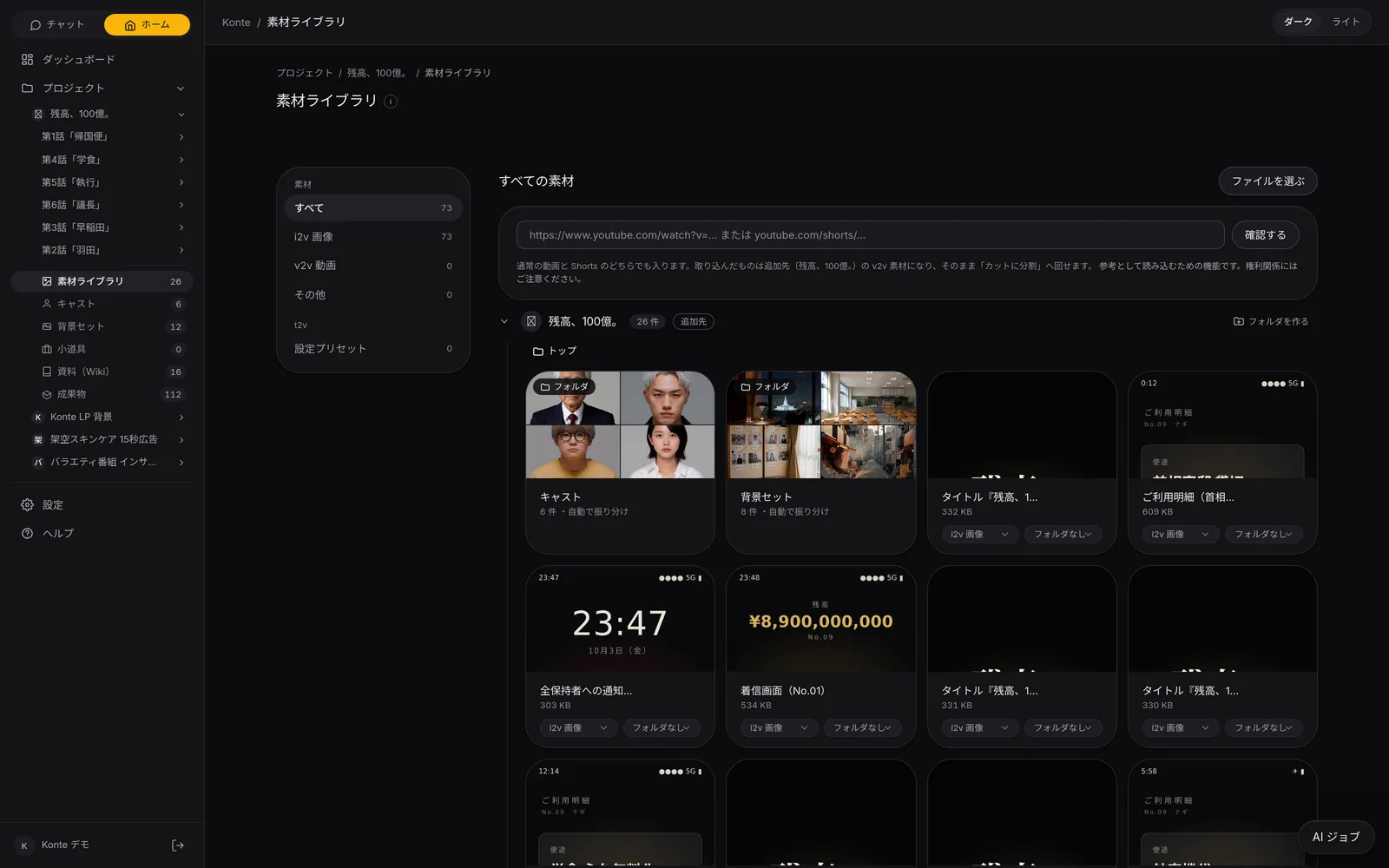
Konte app screen (in Japanese): Asset library. Photos and videos both go in the asset library. Cast and set images sort themselves into folders.
Asset libraryPhotos and videos both go in the asset library. Cast and set images sort themselves into folders.

02—CASTINGCasting

Actors start with an audition

Settle the face, make the full-body sheet, give them a voice. The same steps for live action or 2D.

  1. 01

    Write the role

    A name and a description. Attach a photo, or settle it by talking with the AI.

  2. 02

    Settle the face

    Draw the reference image with the image AI, or drag one in. You can pick the model that draws it.

  3. 03

    Profile sheet

    Full body, wardrobe and the face from several sides on one sheet, so they look like the same person in every shot.

  4. 04

    Give them a voice

    From the description and profile, the AI makes that cast member's voice and links it.

  5. 05

    Match the art style

    The art style is set for the project and can be overridden per cast member. Live action or 2D.
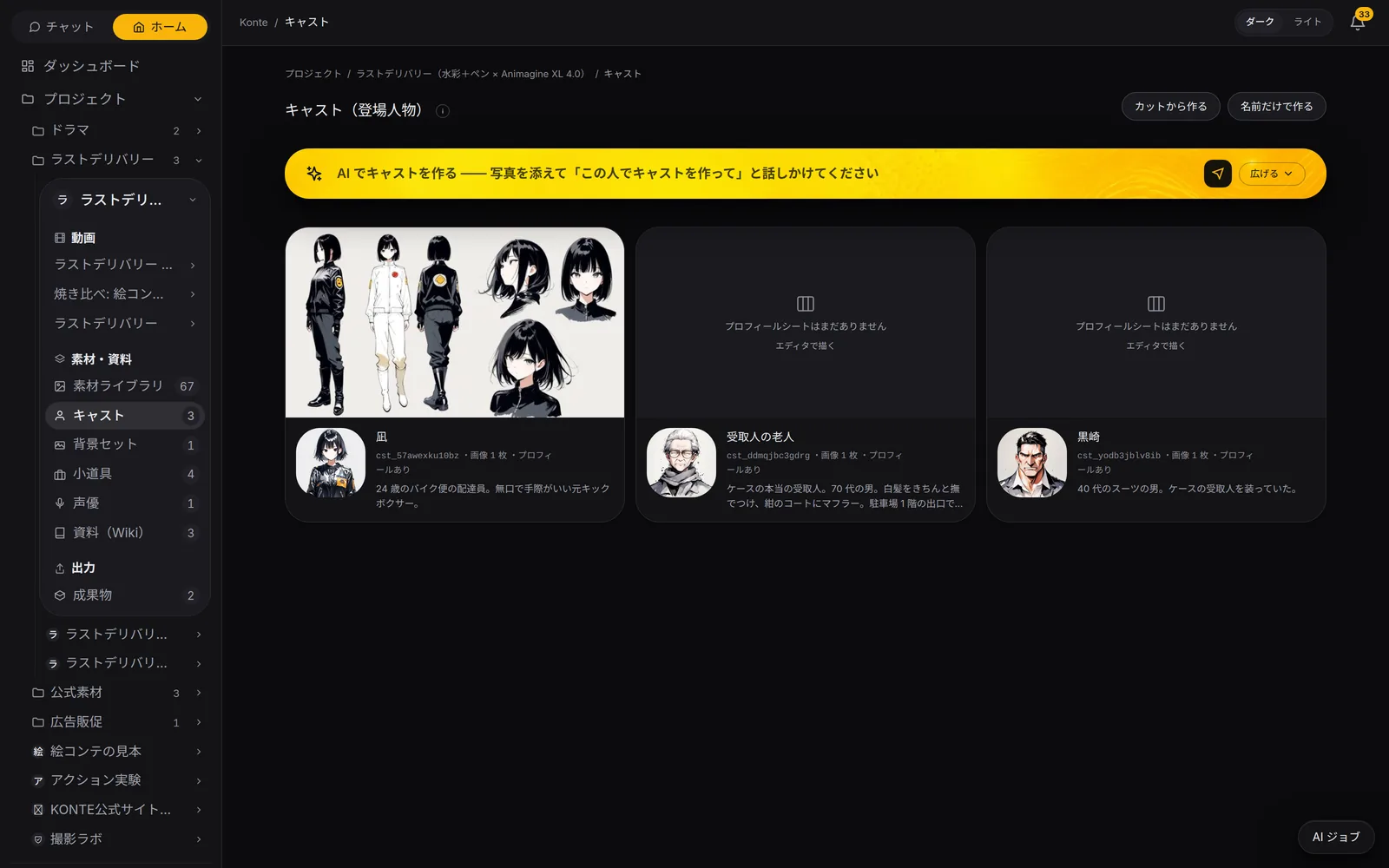
Konte app screen (in Japanese): Cast (2D). The three of a 2D action short. The lead, Nagi, has a profile sheet with full body, wardrobe and the face from several sides.
Cast (2D)The three of a 2D action short. The lead, Nagi, has a profile sheet with full body, wardrobe and the face from several sides.
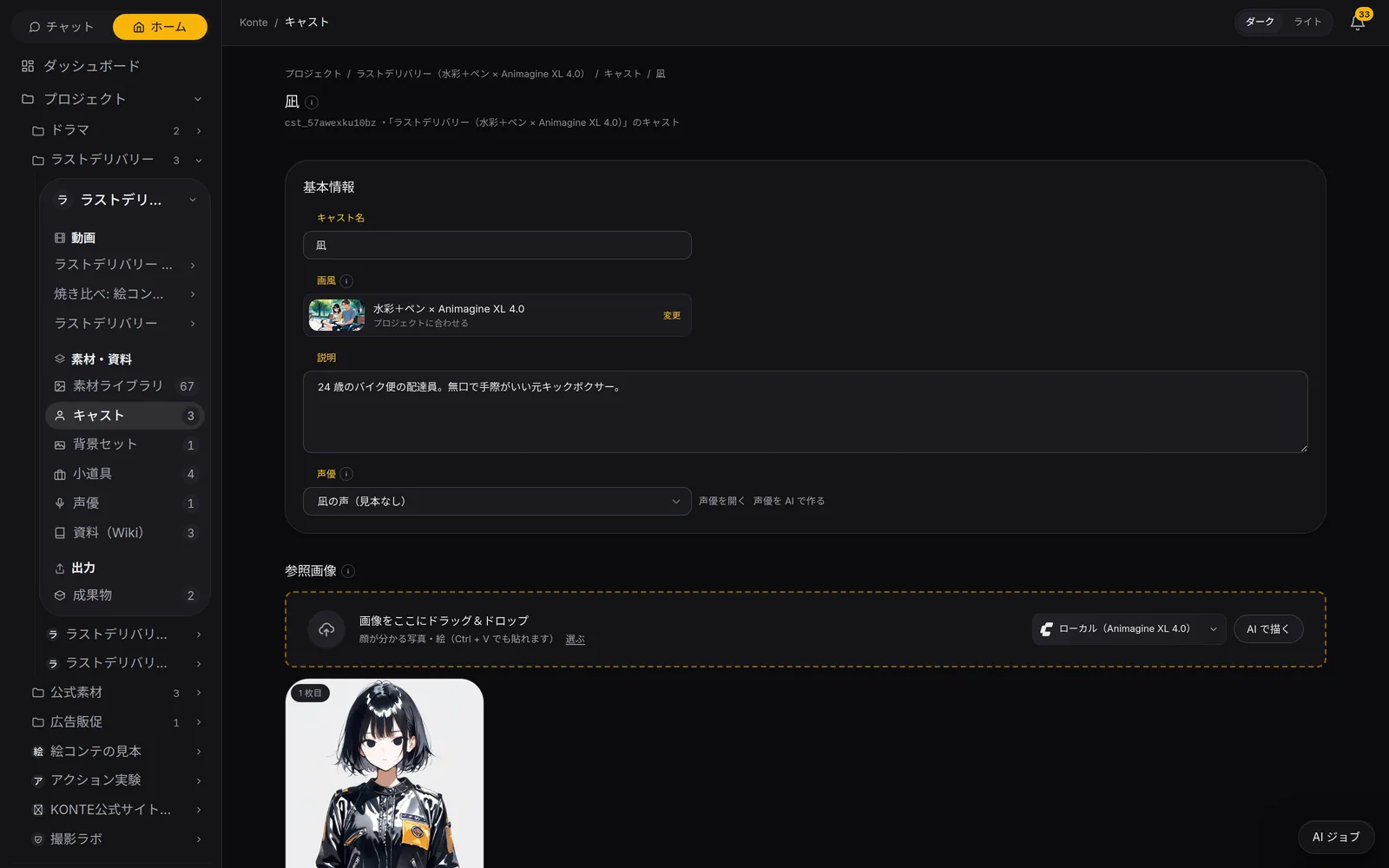
Konte app screen (in Japanese): A cast member. Art style, description, voice actor and reference image on one screen. Drag in a reference image, or have the image AI draw it with the model you pick.
A cast memberArt style, description, voice actor and reference image on one screen. Drag in a reference image, or have the image AI draw it with the model you pick.
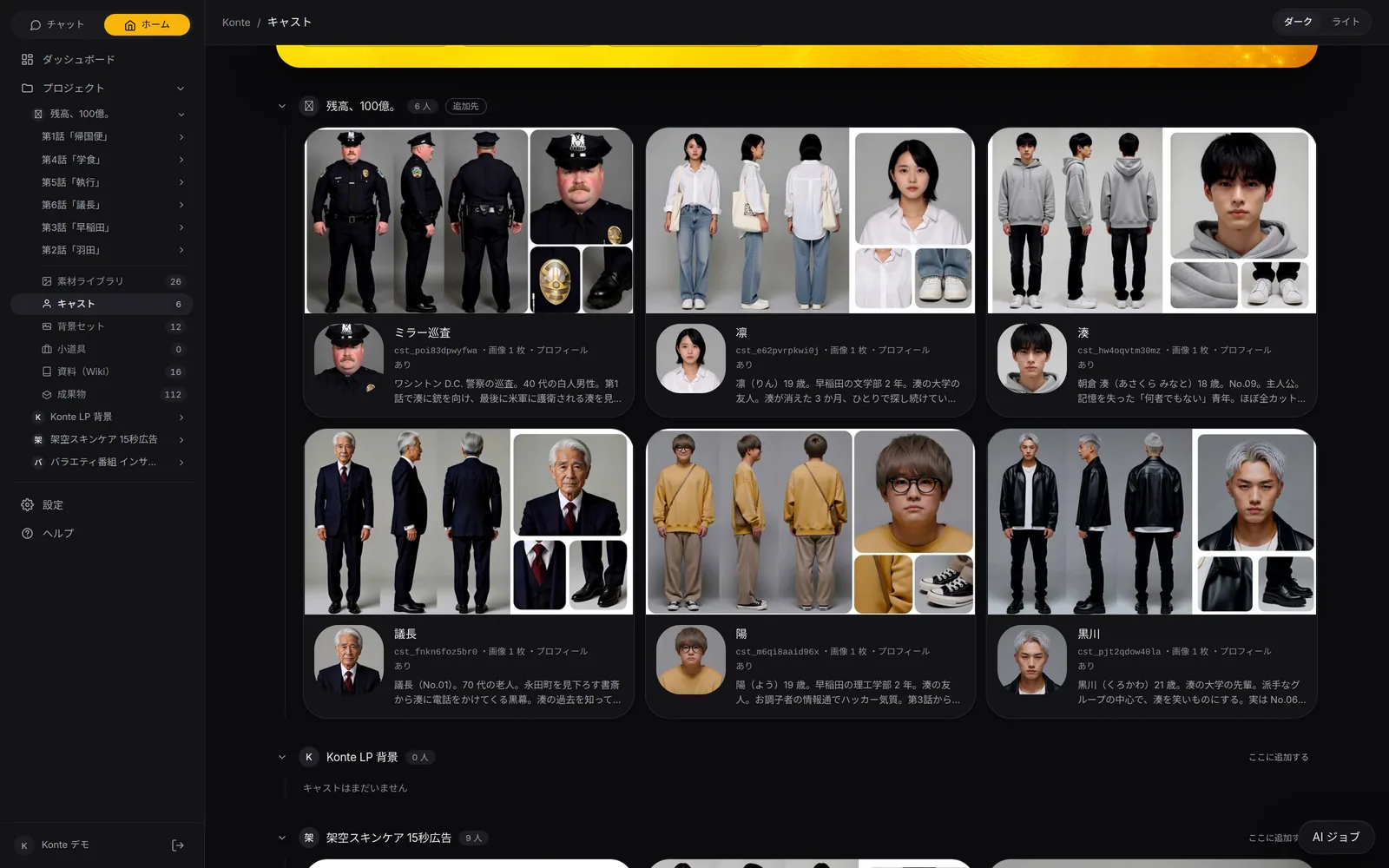
Konte app screen (in Japanese): Cast. The 6 people who appear across all 6 episodes. Turnaround profile sheets show who looks like what at a glance.
CastThe 6 people who appear across all 6 episodes. Turnaround profile sheets show who looks like what at a glance.
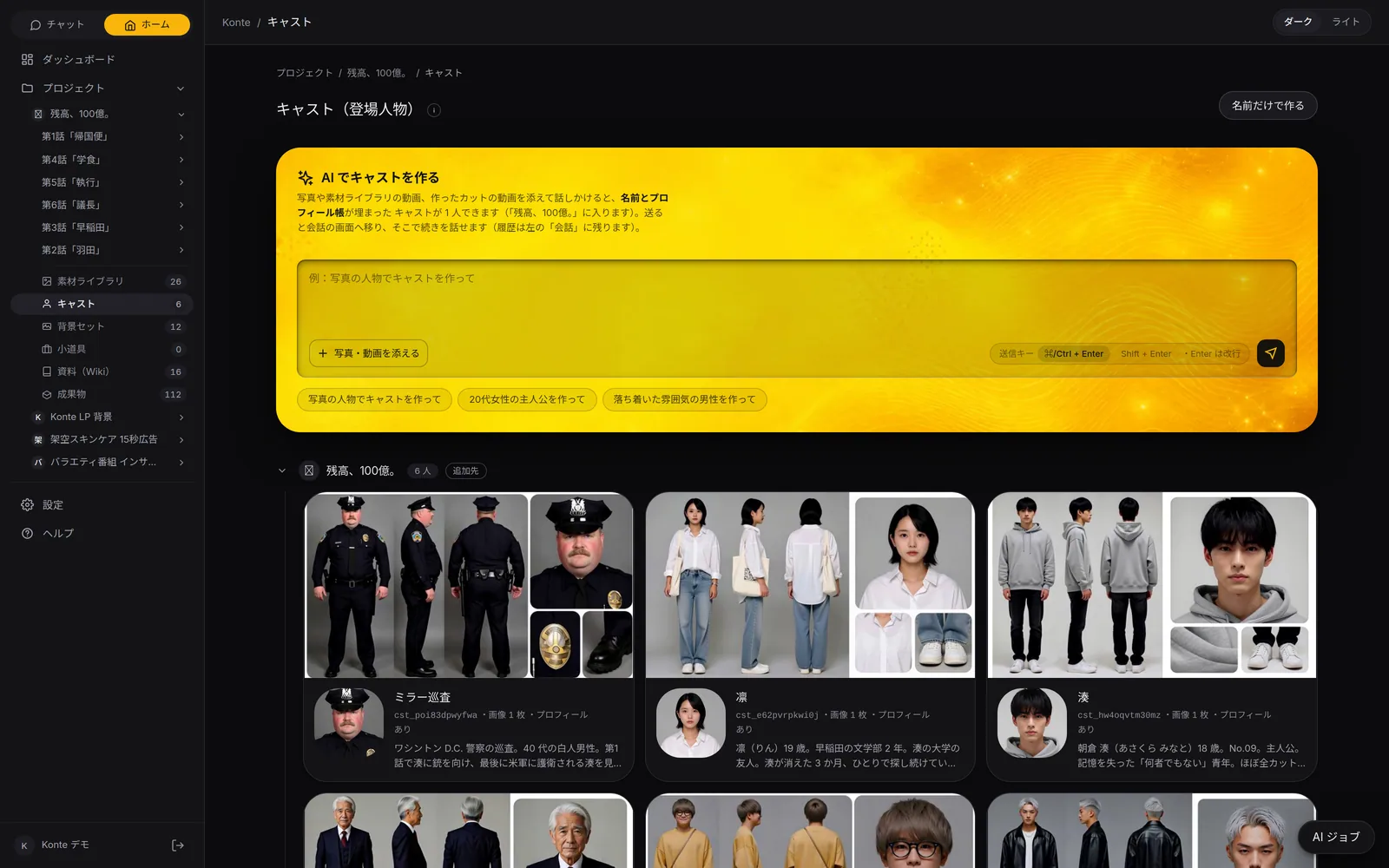
Konte app screen (in Japanese): Create cast with AI. Talk to it with photos or videos attached, and you get a cast member with name and profile filled in.
Create cast with AITalk to it with photos or videos attached, and you get a cast member with name and profile filled in.

03—SETS & PROPSSets and props

Build the places and things first

Attach a set to a chapter and every shot is in the same place. A prop looks the same however often it appears.
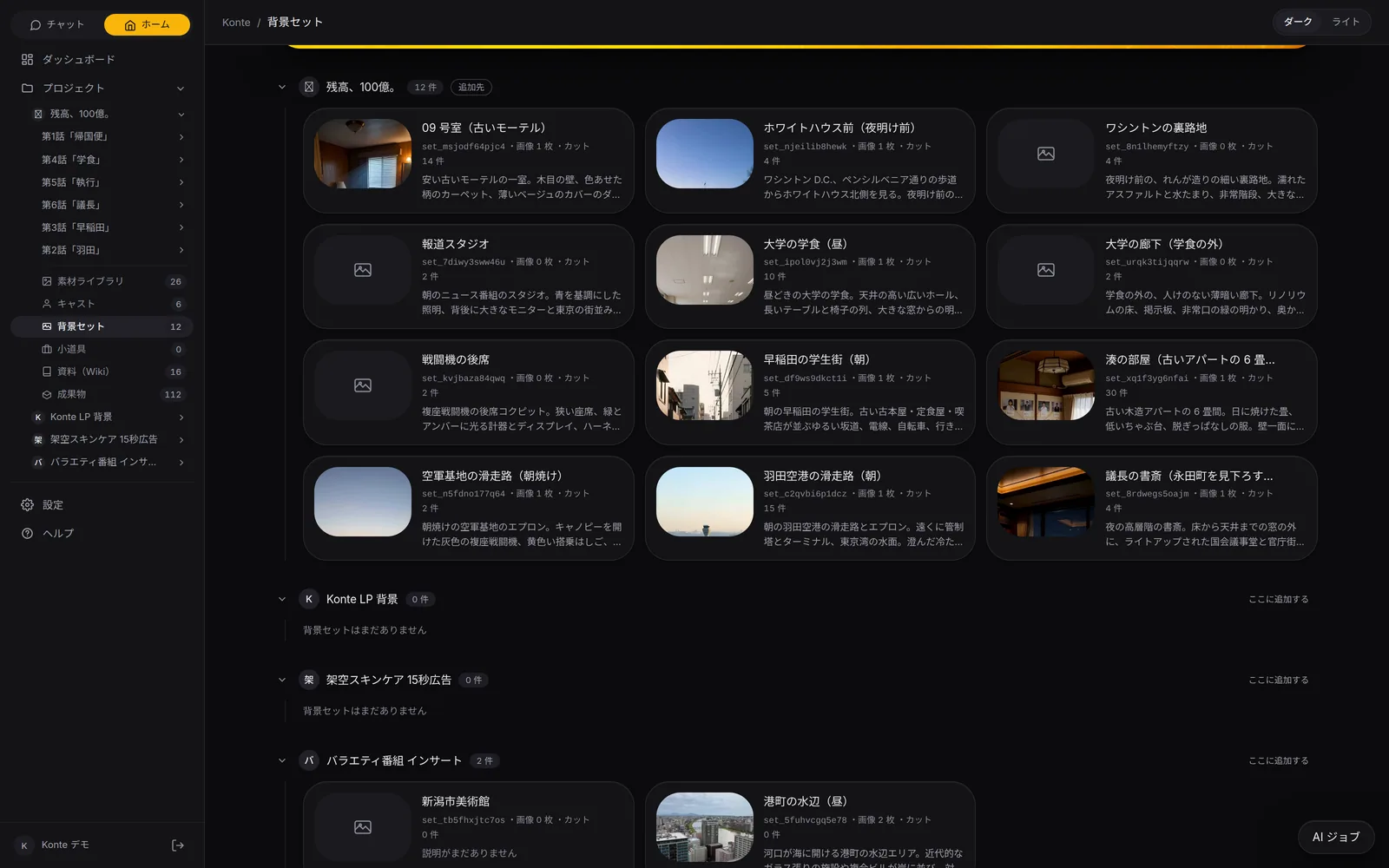
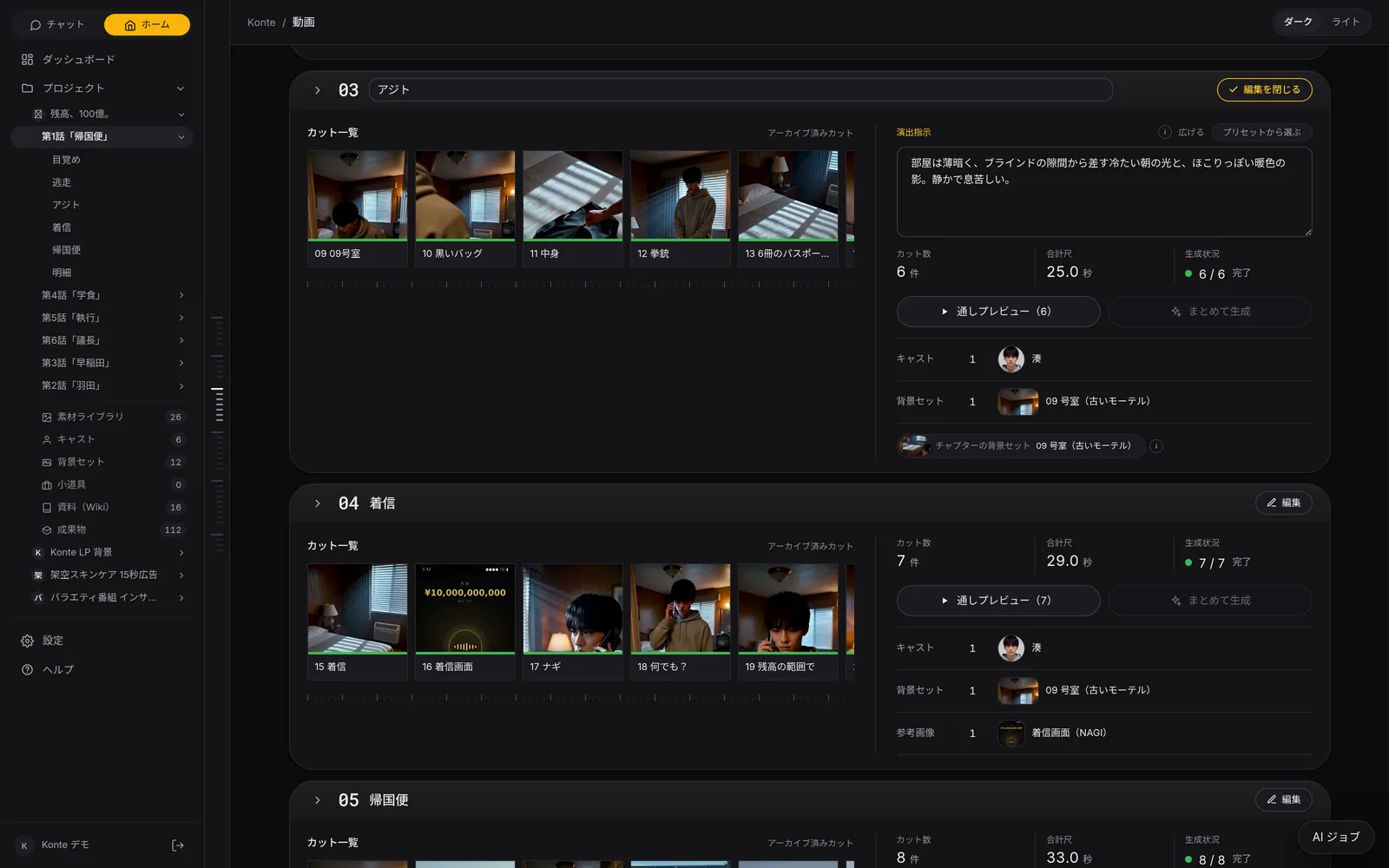
Konte app screen (in Japanese): Sets. 12 places across 6 episodes. One room is reused for 30 shots.
Sets12 places across 6 episodes. One room is reused for 30 shots.
Konte app screen (in Japanese): Linking to a chapter. Attach a set to a chapter and every shot is filmed in the same room.
Linking to a chapterAttach a set to a chapter and every shot is filmed in the same room.
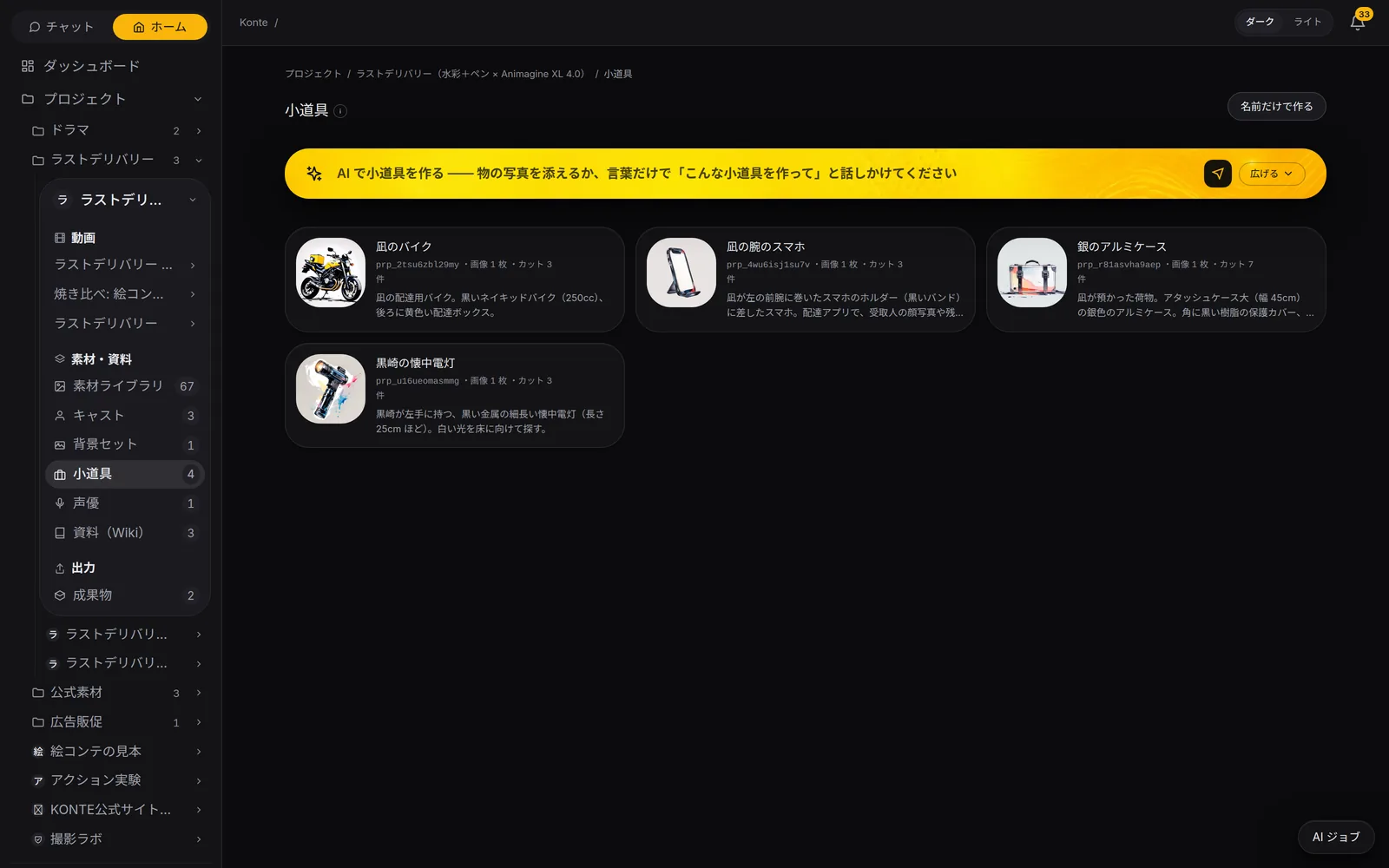
Konte app screen (in Japanese): Props. A motorbike, a phone on the wrist, a silver case, a flashlight. Each has a reference image, so the same thing shows up in every shot.
PropsA motorbike, a phone on the wrist, a silver case, a flashlight. Each has a reference image, so the same thing shows up in every shot.

04—IN THE SHOTFrom the ledger to the shot

Cast every panel from the ledger

Pick the cast, set and props on the storyboard, and their reference images go to the image and video AIs.
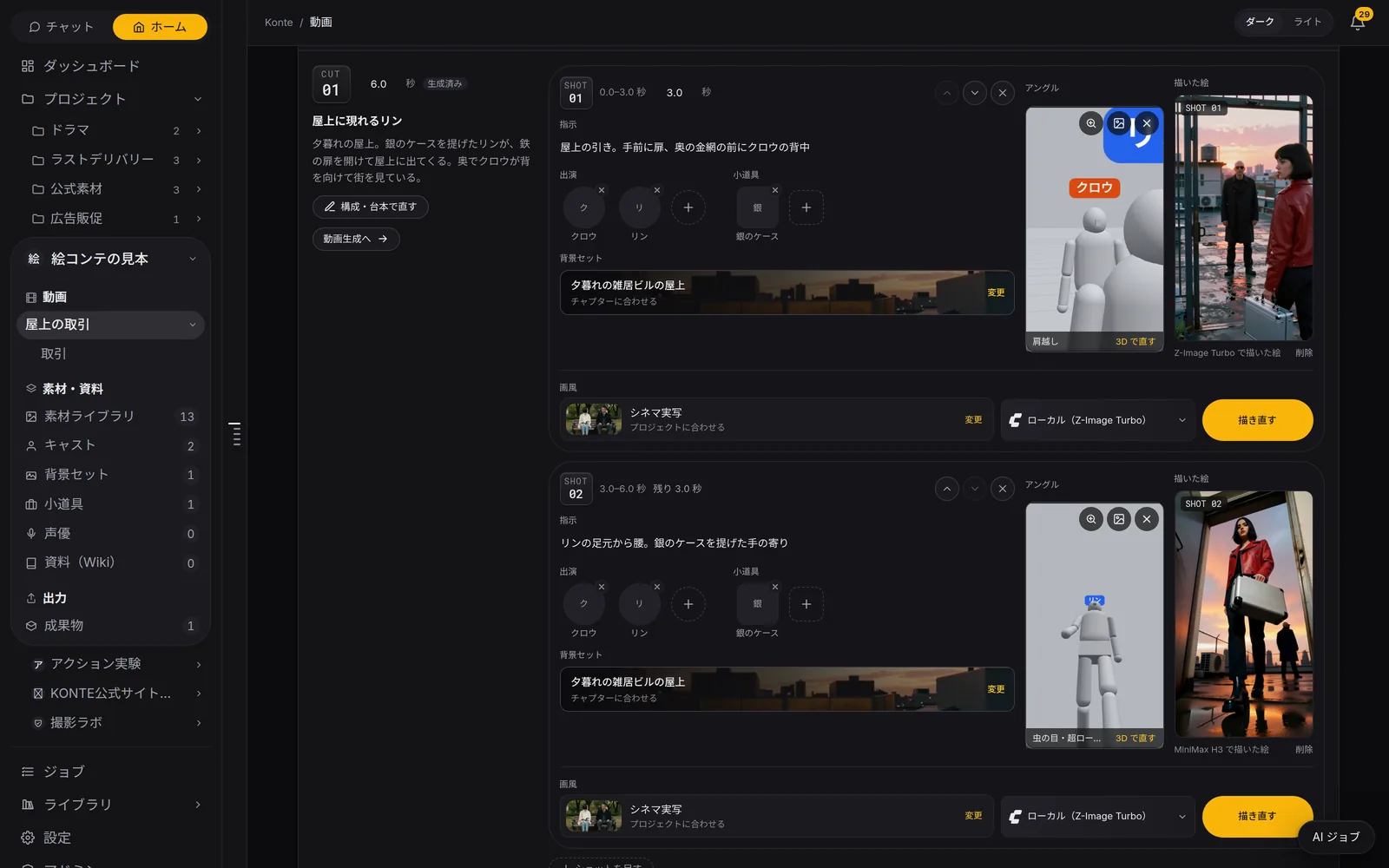
Konte app screen (in Japanese): Storyboard. Each shot splits into panels, and the image AI draws them one by one from the angle set in 3D. You can pick the engine for each panel.
StoryboardEach shot splits into panels, and the image AI draws them one by one from the angle set in 3D. You can pick the engine for each panel.
  • Cast each panel

    Each storyboard panel takes its cast, set and props from the ledger. Their reference images go straight to the image and video AIs.

  • Fix it by talking

    The visual prompt for a cast member or set can be rewritten in conversation, to suit the image AI that draws it.

  • Carry it to another project

    Cast, sets and props can be copied to another project. So can a whole video.

  • Drop it in without rendering

    A video from the asset library can go into a shot as it is, without rendering.

GET STARTEDStart here

Your film studio, starting today

Start by creating a single cast member. We're happy to talk it through.